

Secure video delivery in Moodle™ using AWS Cloudfront and S3
A complete, production-tested walkthrough — from raw MP4 upload all the way to signed-cookie-protected HLS streaming that your students can't rip, share, or leech.
Table of Contents
Why this matters more than you think
If you've ever opened the browser DevTools on a video-based LMS, you know how quickly you can grab a direct MP4 URL. Right-click, copy link, paste into a download manager — your paid course content is gone in 30 seconds flat. I've seen this happen on platforms charging hundreds of dollars per course.
The naive fix — password-protecting S3 folders or adding a ?token= query param to URLs — breaks down quickly. Query-string tokens get shared in WhatsApp groups. S3 presigned URLs expire awkwardly mid-video. And plain MP4 delivery falls apart on slow mobile connections where buffering becomes unbearable.
What actually works is a proper streaming pipeline:
- HLS format instead of raw MP4 — segments load on demand, no one can "download" a complete file
- CloudFront signed cookies — grant session-level access without signing every single URL
- Origin locked to CloudFront — S3 is unreachable from the public internet
- Adaptive bitrate — smooth playback across 2G to gigabit connections
This guide builds exactly that. Every step is something I've used in production on a Moodle™ platform serving thousands of learners. Let's get into it.
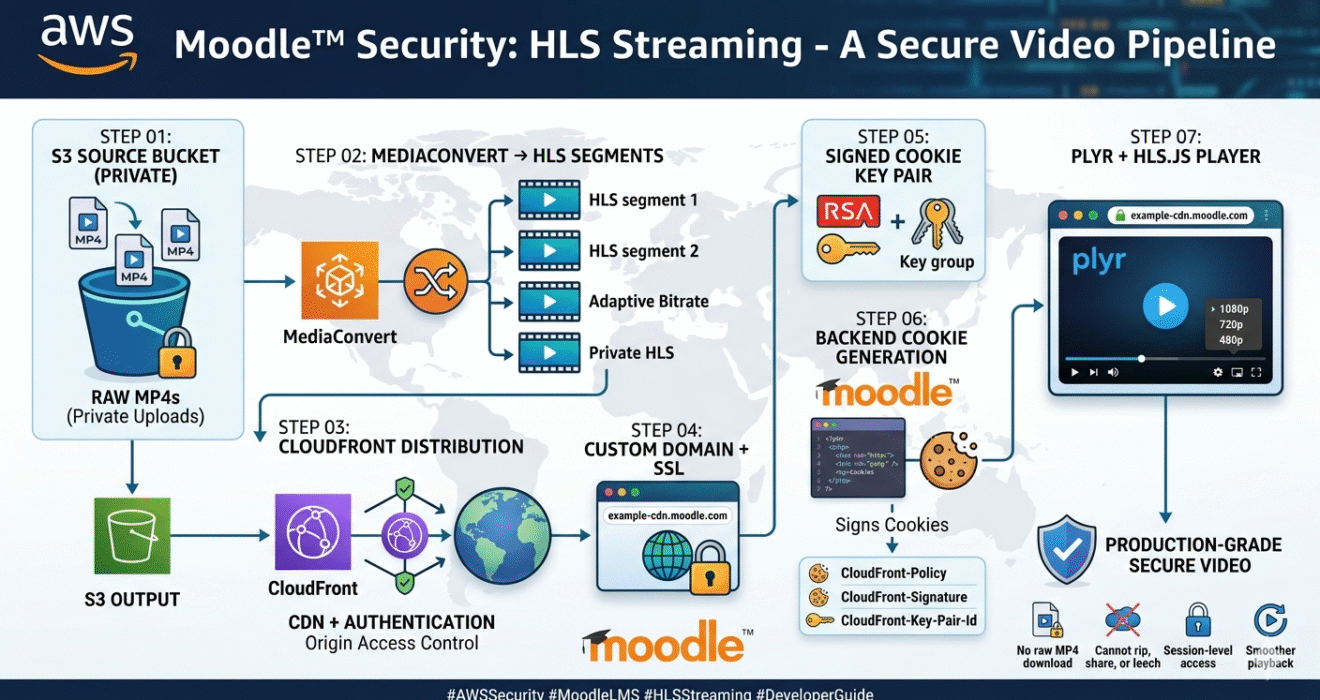
Architecture overview
Before touching a single AWS console, get the big picture clear in your head:
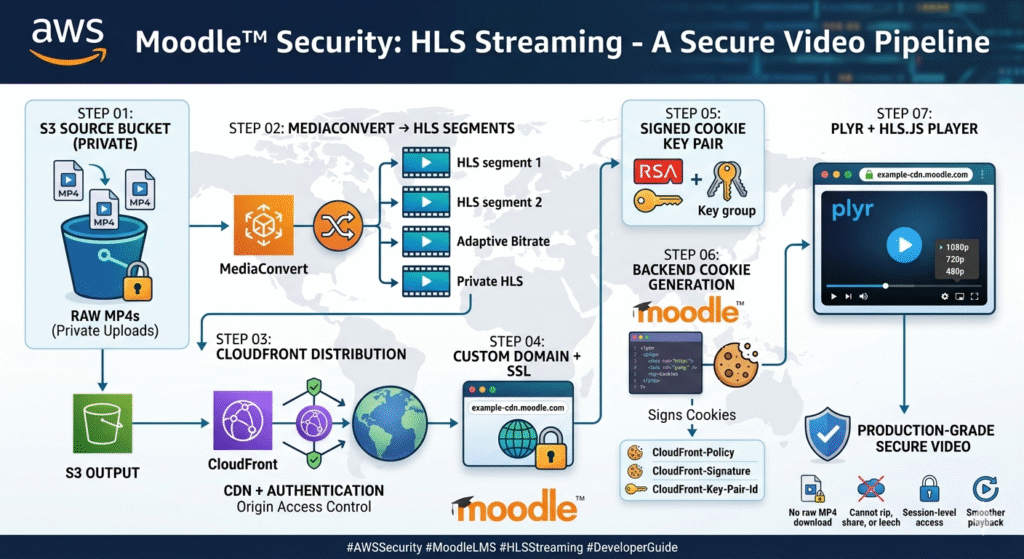
Two S3 buckets — one for raw uploads, one for processed output. MediaConvert runs between them. CloudFront sits in front of the output bucket and enforces signed-cookie authentication. Moodle™ generates those cookies server-side when a student opens a lesson. The browser player never sees an S3 URL — only your CloudFront domain.
Upload source videos to S3
Create your first S3 bucket — this is where raw MP4 files live before processing. Call it something descriptive like my-lms-video-source.
Create the bucket via CLI
# Create source bucket
aws s3api create-bucket \
  --bucket my-lms-video-source \
  --region ap-south-1 \
  --create-bucket-configuration LocationConstraint=ap-south-1

# Explicitly block all public access
aws s3api put-public-access-block \
  --bucket my-lms-video-source \
  --public-access-block-configuration \
  "BlockPublicAcls=true,IgnorePublicAcls=true,\
BlockPublicPolicy=true,RestrictPublicBuckets=true"
Organise uploads with a sane prefix structure
Don't just dump files in the root. A predictable path structure makes MediaConvert jobs and IAM policies much simpler later:
my-lms-video-source/
  └── courses/
        ├── course-101/
        │     ├── lesson-01-intro.mp4
        │     └── lesson-02-basics.mp4
        └── course-202/
              └── lesson-01-advanced.mp4
Create an IAM role for MediaConvert
// trust-policy.json
{
  "Version": "2012-10-17",
  "Statement": [{
    "Effect": "Allow",
    "Principal": { "Service": "mediaconvert.amazonaws.com" },
    "Action": "sts:AssumeRole"
  }]
}
aws iam create-role \
  --role-name MediaConvertLMSRole \
  --assume-role-policy-document file://trust-policy.json

aws iam attach-role-policy \
  --role-name MediaConvertLMSRole \
  --policy-arn arn:aws:iam::aws:policy/AmazonS3FullAccess
AmazonS3FullAccess with a custom policy granting only s3:GetObject on the source bucket and s3:PutObject on the output bucket. Principle of least privilege.
Convert videos to HLS with AWS MediaConvert
This is the step most tutorials gloss over. We're converting MP4 into HLS (HTTP Live Streaming), which breaks the video into small .ts segments plus a .m3u8 playlist file. We also produce multiple quality renditions so the player can adapt to the viewer's connection speed.
Create the output S3 bucket
aws s3api create-bucket \
  --bucket my-lms-video-output \
  --region ap-south-1 \
  --create-bucket-configuration LocationConstraint=ap-south-1

aws s3api put-public-access-block \
  --bucket my-lms-video-output \
  --public-access-block-configuration \
  "BlockPublicAcls=true,IgnorePublicAcls=true,\
BlockPublicPolicy=true,RestrictPublicBuckets=true"
MediaConvert job JSON (three quality levels)
{
  "Role": "arn:aws:iam::YOUR_ACCOUNT_ID:role/MediaConvertLMSRole",
  "Settings": {
    "Inputs": [{
      "FileInput": "s3://my-lms-video-source/courses/course-101/lesson-01.mp4",
      "AudioSelectors": { "Audio Selector 1": { "DefaultSelection": "DEFAULT" }}
    }],
    "OutputGroups": [{
      "Name": "Apple HLS",
      "OutputGroupSettings": {
        "Type": "HLS_GROUP_SETTINGS",
        "HlsGroupSettings": {
          "Destination": "s3://my-lms-video-output/courses/course-101/lesson-01/",
          "SegmentLength": 6,
          "MinSegmentLength": 0
        }
      },
      "Outputs": [
        {
          "NameModifier": "_1080p",
          "VideoDescription": { "Width": 1920, "Height": 1080,
            "CodecSettings": { "Codec": "H_264",
              "H264Settings": { "Bitrate": 5000000, "RateControlMode": "CBR" }}},
          "AudioDescriptions": [{ "CodecSettings": { "Codec": "AAC",
            "AacSettings": { "Bitrate": 128000, "SampleRate": 48000 }}}]
        },
        {
          "NameModifier": "_720p",
          "VideoDescription": { "Width": 1280, "Height": 720,
            "CodecSettings": { "Codec": "H_264",
              "H264Settings": { "Bitrate": 2500000, "RateControlMode": "CBR" }}},
          "AudioDescriptions": [{ "CodecSettings": { "Codec": "AAC",
            "AacSettings": { "Bitrate": 128000, "SampleRate": 48000 }}}]
        },
        {
          "NameModifier": "_480p",
          "VideoDescription": { "Width": 854, "Height": 480,
            "CodecSettings": { "Codec": "H_264",
              "H264Settings": { "Bitrate": 1000000, "RateControlMode": "CBR" }}},
          "AudioDescriptions": [{ "CodecSettings": { "Codec": "AAC",
            "AacSettings": { "Bitrate": 96000, "SampleRate": 48000 }}}]
        }
      ]
    }]
  }
}
# Submit the job (get your endpoint first)
aws mediaconvert describe-endpoints

aws mediaconvert create-job \
  --endpoint-url https://YOUR_ENDPOINT.mediaconvert.ap-south-1.amazonaws.com \
  --cli-input-json file://job.json
After the job completes, your output bucket will look like this:
my-lms-video-output/courses/course-101/lesson-01/
  ├── index.m3u8            ← master playlist (this is what the player loads)
  ├── lesson-01_1080p.m3u8
  ├── lesson-01_720p.m3u8
  ├── lesson-01_480p.m3u8
  ├── lesson-01_1080p_00001.ts
  ├── lesson-01_720p_00001.ts
  └── ... (many more .ts segments)
Set up CloudFront with Origin Access Control
CloudFront is the gateway between your students and the private S3 bucket. We'll configure it with OAC (Origin Access Control) — the modern replacement for the older OAI method. OAC is more secure and supports SSE-KMS encrypted buckets too.
Create an Origin Access Control
aws cloudfront create-origin-access-control \
  --origin-access-control-config '{
    "Name": "LMS-Video-OAC",
    "Description": "OAC for LMS video output bucket",
    "SigningProtocol": "sigv4",
    "SigningBehavior": "always",
    "OriginAccessControlOriginType": "s3"
  }'
Key settings when creating the CloudFront distribution in the console:
- Origin domain:
my-lms-video-output.s3.ap-south-1.amazonaws.com - Origin Access Control: attach the OAC you just created
- Viewer protocol policy: Redirect HTTP to HTTPS
- Cache policy: CachingOptimized (built-in)
- Restrict viewer access: Yes — Trusted key groups (added in Step 5)
Grant CloudFront access via S3 bucket policy
{
  "Version": "2012-10-17",
  "Statement": [{
    "Sid": "AllowCloudFrontOAC",
    "Effect": "Allow",
    "Principal": { "Service": "cloudfront.amazonaws.com" },
    "Action": "s3:GetObject",
    "Resource": "arn:aws:s3:::my-lms-video-output/*",
    "Condition": {
      "StringEquals": {
        "AWS:SourceArn": "arn:aws:cloudfront::YOUR_ACCOUNT_ID:distribution/YOUR_DIST_ID"
      }
    }
  }]
}
.m3u8 URL into the HLS.js demo player and verify it plays. A lot of signed-cookie issues later turn out to be basic origin misconfigurations. Verify content works before layering on auth — it's much harder to debug both at once.
Custom domain and SSL certificate
Using your own domain (e.g. cdn.yourschool.com) instead of *.cloudfront.net is not optional when using signed cookies. Cookies are scoped to a domain — if Moodle™ sets a cookie for yourschool.com and the player loads video from cloudfront.net, the browser won't send the cookie.
# Must be --region us-east-1 for CloudFront
aws acm request-certificate \
  --domain-name cdn.yourschool.com \
  --validation-method DNS \
  --region us-east-1
Add the CNAME ACM gives you to your DNS, wait for validation (usually 2–5 minutes), then attach the certificate in your CloudFront distribution under Custom SSL certificate. Then add a DNS record pointing your subdomain to CloudFront:
Type:  CNAME
Name:  cdn.yourschool.com
Value: dxxxxx.cloudfront.net
TTL:   300
Enable signed cookies on CloudFront
This is the security core of the whole system. A single signed cookie grants access to a pattern of URLs, which is exactly what HLS needs. A video with 80 segments would require 80 signed URLs — signed cookies cover the whole path with just three cookie values.
Generate an RSA key pair
# Generate 2048-bit RSA private key
openssl genrsa -out cloudfront_private.pem 2048

# Extract the public key
openssl rsa -pubout -in cloudfront_private.pem -out cloudfront_public.pem

# Never commit this to git
echo "cloudfront_private.pem" >> .gitignore
Upload the public key and create a Key Group
# Upload public key to CloudFront
aws cloudfront create-public-key \
  --public-key-config '{
    "CallerReference": "lms-video-key-001",
    "Name": "LMS-Video-Signing-Key",
    "EncodedKey": "'$(cat cloudfront_public.pem)'"
  }'

# Create a Key Group with the key ID from the response above
aws cloudfront create-key-group \
  --key-group-config '{
    "Name": "LMS-Video-KeyGroup",
    "Items": ["YOUR_PUBLIC_KEY_ID"]
  }'
In your CloudFront distribution → Behaviors → Edit default behavior: set Restrict viewer access to Yes and select this Key Group. From this point, unauthenticated requests get a 403.
cloudfront_private.pem in AWS Secrets Manager or as a server environment variable. Never hardcode it in source files, never commit it to any repository, and never put it anywhere a web server misconfiguration could serve it publicly.
Generate signed cookies in Moodle™ (PHP)
Call this function whenever a logged-in student opens a lesson page. It sets three cookies that CloudFront will validate on every video request:
CloudFront-Policy— base64-encoded JSON defining what can be accessed and until whenCloudFront-Signature— RSA-SHA1 signature of that policyCloudFront-Key-Pair-Id— the ID of your public key in CloudFront
<?php

function set_cloudfront_signed_cookies() {
    $cloudfront_domain = 'https://cdn.yourschool.com';
    $key_pair_id       = getenv('CF_KEY_PAIR_ID');
    $private_key_path  = getenv('CF_PRIVATE_KEY_PATH');
    $expires           = time() + (60 * 60); // 1 hour

    // Policy grants access to all content under this domain
    $policy = json_encode([
        'Statement' => [[
            'Resource'  => $cloudfront_domain . '/*',
            'Condition' => [
                'DateLessThan' => ['AWS:EpochTime' => $expires]
            ]
        ]]
    ], JSON_UNESCAPED_SLASHES);

    // Sign the policy with the private key
    $private_key = openssl_pkey_get_private(file_get_contents($private_key_path));
    openssl_sign($policy, $signature, $private_key, OPENSSL_ALGO_SHA1);

    // CloudFront requires URL-safe base64 (replace +, =, /)
    function cf_base64($data) {
        return str_replace(['+', '=', '/'], ['-', '_', '~'], base64_encode($data));
    }

    $cookie_opts = [
        'expires'  => $expires,
        'path'     => '/',
        'domain'   => '.yourschool.com', // leading dot covers all subdomains
        'secure'   => true,
        'httponly' => true,
        'samesite' => 'None'  // required for cross-subdomain credentialed requests
    ];

    setcookie('CloudFront-Policy',      cf_base64($policy),    $cookie_opts);
    setcookie('CloudFront-Signature',   cf_base64($signature), $cookie_opts);
    setcookie('CloudFront-Key-Pair-Id', $key_pair_id,         $cookie_opts);
}

// Call this on every lesson page load
if (isloggedin()) {
    set_cloudfront_signed_cookies();
}
yourschool.com while videos load from cdn.yourschool.com. Even though it's the same root domain, the browser treats this as cross-site for SameSite purposes. Setting SameSite=None; Secure tells the browser to send the cookie with those cross-origin HLS.js requests — without it, every segment request returns a 403.
Integrate Plyr + HLS.js in Moodle™
The player has one job: load the index.m3u8 playlist and send cookies with every segment request. We use Plyr for the UI and HLS.js for decoding (Firefox and most Android browsers don't support HLS natively).
HTML markup
<link rel="stylesheet" href="https://cdn.plyr.io/3.7.8/plyr.css" />

<div class="video-wrapper">
  <video id="player" playsinline controls></video>
</div>

<script src="https://cdn.plyr.io/3.7.8/plyr.polyfilled.js"></script>
<script src="https://cdn.jsdelivr.net/npm/hls.js@1.5.13/dist/hls.min.js"></script>
Player initialisation
const videoEl  = document.getElementById('player');
const videoSrc = 'https://cdn.yourschool.com/courses/course-101/lesson-01/index.m3u8';

if (Hls.isSupported()) {
  const hls = new Hls({
    // Critical — sends the signed cookies with every segment request
    xhrSetup: (xhr) => { xhr.withCredentials = true; },
    startLevel: -1,       // auto-select starting quality
    autoStartLoad: true,
  });

  hls.loadSource(videoSrc);
  hls.attachMedia(videoEl);

  hls.on(Hls.Events.MANIFEST_PARSED, () => {
    new Plyr(videoEl, {
      quality: {
        default: 720,
        options: [1080, 720, 480],
        forced: true,
        onChange: (quality) => {
          hls.currentLevel = hls.levels.findIndex(l => l.height === quality);
        },
      },
      controls: [
        'play-large', 'play', 'progress', 'current-time',
        'mute', 'volume', 'captions', 'settings', 'fullscreen'
      ],
    });
  });

} else if (videoEl.canPlayType('application/vnd.apple.mpegurl')) {
  // Safari native HLS — cookies are sent automatically
  videoEl.src = videoSrc;
  new Plyr(videoEl);
}
yourschool.com is making credentialed cross-origin requests to cdn.yourschool.com, add a CloudFront Response Headers Policy with Access-Control-Allow-Origin: https://yourschool.com and Access-Control-Allow-Credentials: true. A wildcard * origin with credentialed requests will be silently rejected by the browser.
Troubleshooting common issues
403 Forbidden even with cookies set
Check three things: (1) the cookie domain has a leading dot (.yourschool.com), (2) both SameSite=None and Secure=true are set, (3) the Key Group is attached to the CloudFront behavior, not just the distribution.
Video loads but quality switching doesn't work
Log hls.levels to the console to see the actual order MediaConvert output the renditions in — it may not be 1080/720/480 from top to bottom. Adjust your findIndex logic accordingly.
Segments work on desktop but not mobile
Mobile Safari uses native HLS and ignores HLS.js entirely. If cookies are being set via JavaScript rather than PHP headers, Safari may silently drop them due to ITP. Always set CloudFront cookies server-side from PHP.
CloudFront serving stale content after re-upload
# Invalidate the cache for a specific lesson
aws cloudfront create-invalidation \
  --distribution-id YOUR_DIST_ID \
  --paths "/courses/course-101/lesson-01/*"
You now have a production-grade video pipeline
To recap: source MP4s sit in a private S3 bucket, MediaConvert transcodes them to adaptive HLS, CloudFront delivers segments over HTTPS from the edge, and signed cookies issued by Moodle™ control exactly who can watch what and for how long.
Students get smooth, adaptive playback. You get peace of mind that your content isn't being ripped and shared. The whole thing scales to thousands of concurrent viewers without touching your Moodle™ server's bandwidth.
Next step from here: look into scoping cookies per-course — e.g. /courses/course-101/* — instead of the entire CDN origin, if you want finer-grained access control per enrolment.
