

Synchronization Settings allow administrators to control how CourseTransit imports, updates, and manages Moodle courses inside WordPress. These settings determine how product information, course content, images, and synchronization behavior are handled during course synchronization.
Open Synchronization Settings #
To configure synchronization behavior:
- Log in to your WordPress administrator dashboard.
- Navigate to: CourseTransit → Settings → Synchronization
- Configure the desired synchronization options.
- Click Save Settings to apply your changes.
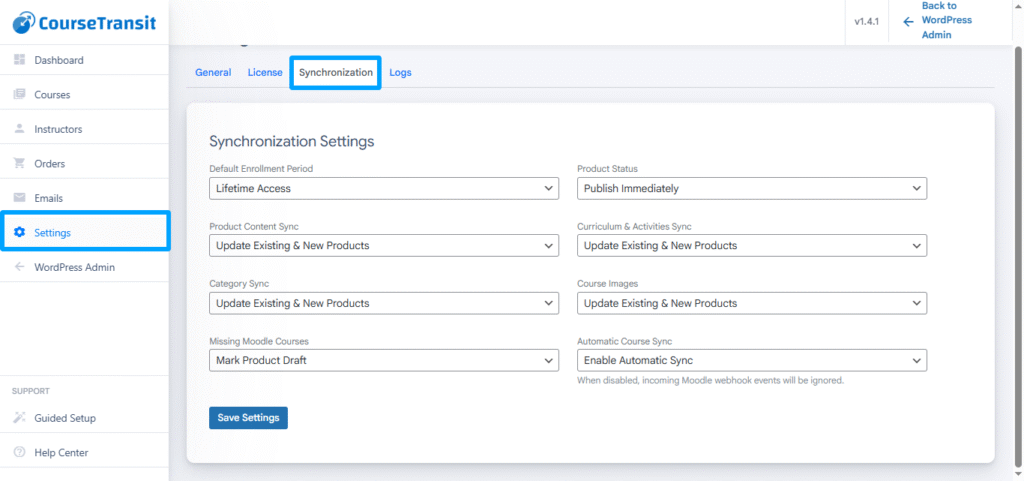
Synchronization Options #
The following settings are available:
Default Enrollment Period #
Defines the default enrollment period assigned to newly synchronized WooCommerce course products.
Available options:
- Lifetime Access – Grants permanent access to the course after enrollment.
- 30 Days – Access expires 30 days after enrollment.
- 60 Days – Access expires 60 days after enrollment.
- 90 Days – Access expires 90 days after enrollment.
- 180 Days – Access expires 180 days after enrollment.
- 365 Days – Access expires 365 days after enrollment.
Product Status #
Determines the publication status assigned to newly synchronized WooCommerce products.
Available options:
- Publish Immediately – Publish products immediately after synchronization.
- Save as Draft – Create products as drafts for manual review before publishing.
- Private – Create products as private and visible only to administrators.
Product Content Sync #
Controls how WooCommerce product descriptions and content are synchronized from Moodle.
Available options:
- Update Existing & New Products – Synchronize content for both newly created and previously synchronized products.
- Sync Only During Product Creation – Synchronize content only when the WooCommerce product is created. Existing products are not updated.
- Disable Product Content Sync – Do not synchronize course descriptions or product content.
Curriculum & Activities Sync #
Controls how Moodle course sections, lessons, activities, and learning resources are synchronized.
This includes:
- Course sections
- Lessons
- Assignments
- Quizzes
- SCORM packages
- Files and learning resources
Available options:
- Update Existing & New Products – Keep curriculum synchronized for all products.
- Sync Only During Product Creation – Import curriculum only when the WooCommerce product is first created.
- Disable Curriculum Sync – Do not synchronize course curriculum or learning activities.
Category Sync #
Controls how Moodle course categories are synchronized with WooCommerce product categories.
Available options:
- Update Existing & New Products – Synchronize categories for both new and existing products.
- Sync Only During Product Creation – Assign categories only when the product is initially created.
- Disable Category Sync – Do not synchronize Moodle categories.
Course Images #
Determines how featured course images are synchronized.
Available options:
- Update Existing & New Products – Keep featured images synchronized for all products.
- Sync Only During Product Creation – Import the featured image only when the product is first created.
- Keep Existing Product Images – Preserve existing WooCommerce product images and do not overwrite them during synchronization.
- Disable Image Sync – Do not synchronize course images from Moodle.
Missing Moodle Courses #
Defines how CourseTransit handles WooCommerce products when the corresponding Moodle course no longer exists.
Available options:
Keep Product Published – Leave the WooCommerce product unchanged even if the Moodle course no longer exists.
Mark Product Draft – Change the WooCommerce product status to Draft while keeping the product.
Trash Product – Move the WooCommerce product to the Trash.
Automatic Course Sync ⭐ Pro #
Available in CourseTransit Pro
Automatic Course Sync allows CourseTransit to automatically synchronize supported Moodle course changes with WordPress using Moodle webhooks. When enabled, course updates are processed in the background, reducing the need for manual synchronization.
Available Options
- Enable Automatic Sync – Process incoming Moodle webhook events and automatically synchronize supported course changes with WordPress.
- Disable Automatic Sync – Ignore incoming Moodle webhook events. Courses can still be synchronized manually using Sync Courses or Select & Sync Courses.
Benefits
When Automatic Course Sync is enabled:
- Newly created Moodle courses are synchronized automatically.
- Course updates are reflected in WordPress without manual intervention.
- Course content and product information remain up to date.
- Routine synchronization tasks are automated, reducing administrative effort.
Enable Automatic Course Sync
- Navigate to CourseTransit → Settings → Synchronization.
- Locate the Automatic Course Sync setting.
- Select Enable Automatic Sync.
- Click Save Settings.
ℹ️ ImportantAutomatic Course Sync requires an active CourseTransit Pro license. When disabled, incoming Moodle webhook events are ignored and course updates must be synchronized manually.
Recommended Settings #
For most CourseTransit installations, the following configuration is recommended:
| Setting | Recommended Value |
|---|---|
| Default Enrollment Period | Lifetime Access |
| Product Status | Publish Immediately |
| Product Content Sync | Update Existing & New Products |
| Curriculum & Activities Sync | Update Existing & New Products |
| Category Sync | Update Existing & New Products |
| Course Images | Update Existing & New Products |
| Missing Moodle Courses | Mark Product Draft |
| Automatic Course Sync ⭐ | Enable Automatic Sync (Pro) |
Next Step #
Your synchronization preferences are now configured.
Continue with Email Templates to configure the email notifications sent by CourseTransit to your users and administrators.


