

CourseTransit allows administrators to fully customize the email templates sent to students during enrollment and account-related actions.
Using the Email Templates section, you can:
- Customize email subjects and content.
- Configure separate templates for new and existing users.
- Use dynamic tags for personalized emails.
- Maintain consistent branding and communication.
Accessing Email Templates #
- Log in to your CourseTransit Dashboard.
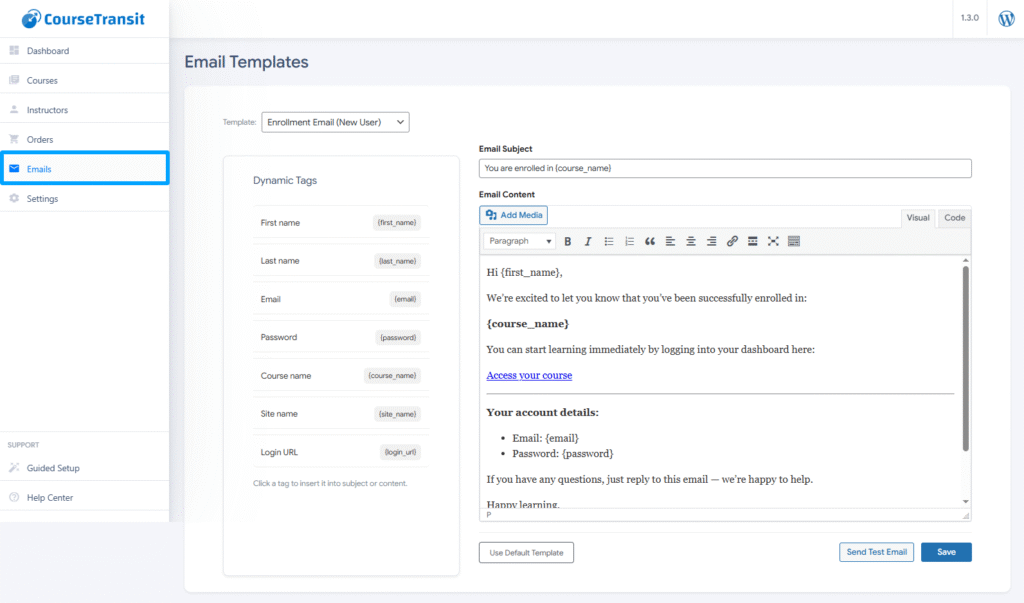
- Navigate to:
CourseTransit → Emails
Available Email Templates #
CourseTransit provides different email templates based on user scenarios.
1. Enrollment Email (New User) #
This email is sent when:
- A new student is created automatically.
- Login credentials are generated.
- Course access is assigned for the first time.
Recommended Content #
Include:
- Student name.
- Login credentials.
- Course name.
- Login URL.
- Support information.
2. Enrollment Email (Existing User) #
This email is sent when:
- An already existing student is enrolled into a new course.
- No new account is created.
Typical Use Cases #
- Informing users about new enrollments.
- Sharing course access details.
- Providing direct login instructions.
Editing an Email Template #
To edit a template:
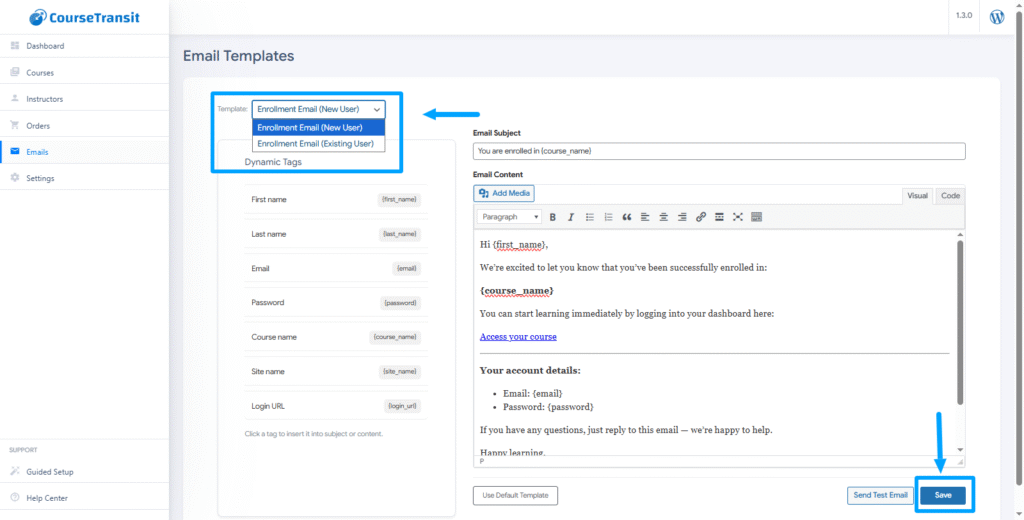
- Open the Template dropdown.
- Select the desired template.
- Modify:
- Email Subject.
- Email Content.
- Save changes
Dynamic Tags #
Dynamic tags allow personalized information to be inserted automatically into emails.
When an email is sent, these placeholders are replaced with actual student and course information.
Available Dynamic Tags
| Tag | Description |
|---|---|
{first_name} |
Student first name |
{last_name} |
Student last name |
{email} |
Student email address |
{password} |
Generated password (new users only) |
{course_name} |
Enrolled course name |
{site_name} |
Website or platform name |
{login_url} |
Login page URL |
Using Dynamic Tags
You can insert tags inside:
- Email subject.
- Email body/content.
Example Subject
Welcome to {course_name}Example Content
Hello {first_name},

You have been successfully enrolled in {course_name}.

Login URL: {login_url}

Email: {email}
Password: {password}
Email Editor #
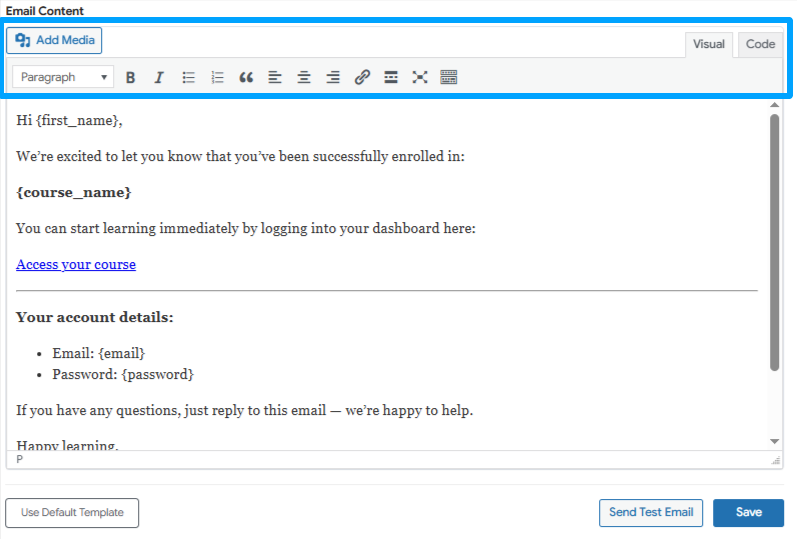
The email content editor supports:
- Rich text formatting.
- Links.
- Lists.
- Media insertion.
- HTML/code view.
This allows you to create professional and branded email communications.
Best Practices #
- Keep email subjects short and clear.
- Always include login instructions.
- Avoid removing essential dynamic tags.
- Test emails before using them in production.
- Use branding and support details for better user experience.
Important #
{password}is applicable for newly created users only.- Existing users may not receive password information.
- Incorrect or removed dynamic tags may result in incomplete emails.
Troubleshooting #
If emails are not received:
- Verify WordPress email functionality.
- Check SMTP configuration.
- Ensure student email addresses are valid.
- Check spam/junk folders.


