

This guide explains how to activate and manage your CourseTransit Pro license. A valid license unlocks premium features across your connected Moodle and WordPress CourseTransit installations.
Before You Begin #
Before activating your license, ensure that:
- You have purchased CourseTransit Pro. If you haven’t purchased a license yet, you can purchase it from JustAddWater Store:
https://store.justaddwater.in/products/coursetransit-pro-version - The CourseTransit Moodle and WordPress plugins are installed.
- The Guided Setup has been completed successfully.
- You have access to your JustAddWater Store account.
Download the Pro Plugins #
After purchasing CourseTransit Pro:
- Sign in to your JustAddWater Store account.
- Navigate to My Downloads.
- Download the latest Moodle and WordPress Pro plugin packages.
Coursetransit_wp_pro_v2.0.0.zipcoursetransit_md_pro_2.0.0.zip
- Install or update both plugins before activating your license.
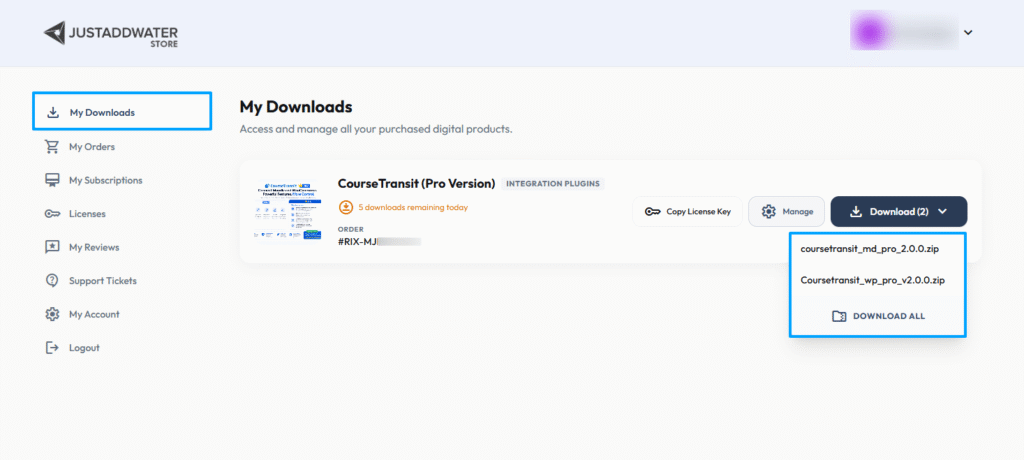
ℹ️ ImportantThe Pro purchase includes the latest Moodle and WordPress plugin packages. Install or update both plugins before activating your license.
Where to find License Key #
Your license key is generated after your purchase.
To retrieve it:
- Log in to your JustAddWater Store account.
- Navigate to Account → Licenses.
- Open your CourseTransit Pro license.
- Copy the displayed license key.
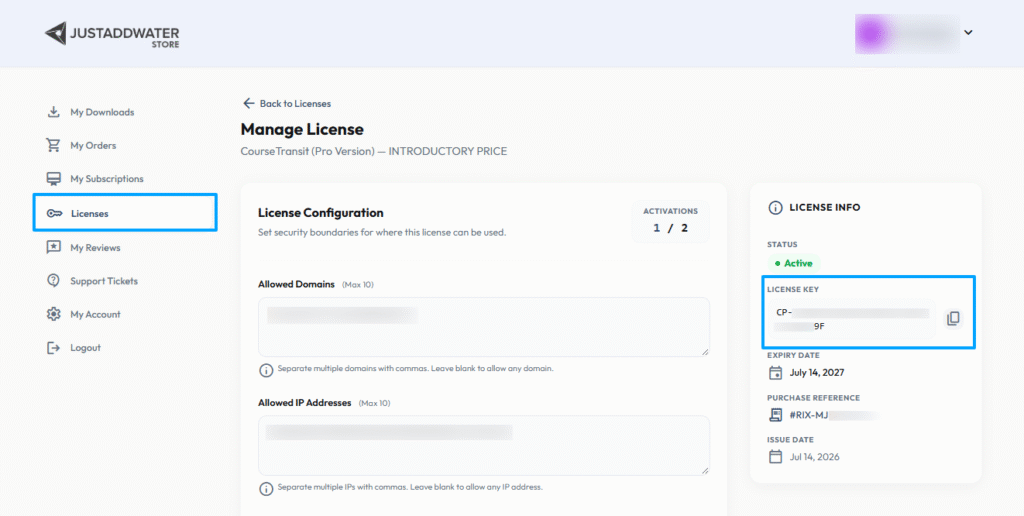
ℹ️ ImportantKeep your license key secure. It is required to activate CourseTransit Pro on your website.
Activate Your License #
Activate your license from the WordPress CourseTransit dashboard.
- Log in to your WordPress administrator dashboard.
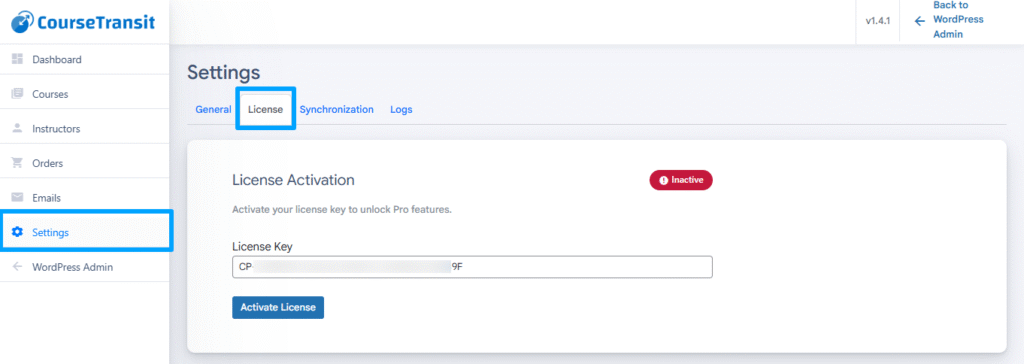
- Navigate to: CourseTransit → Settings → License
- Paste your license key into the License Key field.
- Click Activate License.
- Wait for the activation result and verify the license status.
License Management Options #
The License tab also provides the following actions:
- Activate License: Activate CourseTransit Pro using your license key.
- Check License: Check the current license status.
- Change License: Change the license associated with the installation.
Successful Activation #
After successful activation:
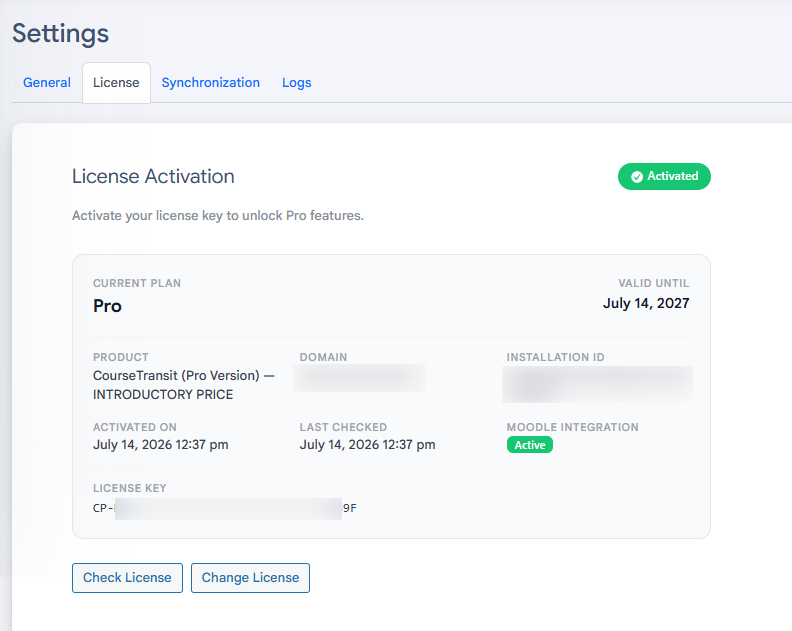
- The license status changes to Active.
- Your current plan and validity information are displayed.
- The license summary shows the product, connected domain, installation ID, activation date, and last check time where available.
- The Moodle Integration status indicates the connected Moodle license state.
- Pro features become available according to your license and feature settings.
CourseTransit automatically activates the connected Moodle-side license as part of the WordPress license activation process. You do not need to enter the same license key separately in Moodle.
Verify License Status in Moodle #
After activating the license in WordPress, you can also verify the license from Moodle.
Navigate to:
Site Administration → Plugins → Authentication → CourseTransit → License
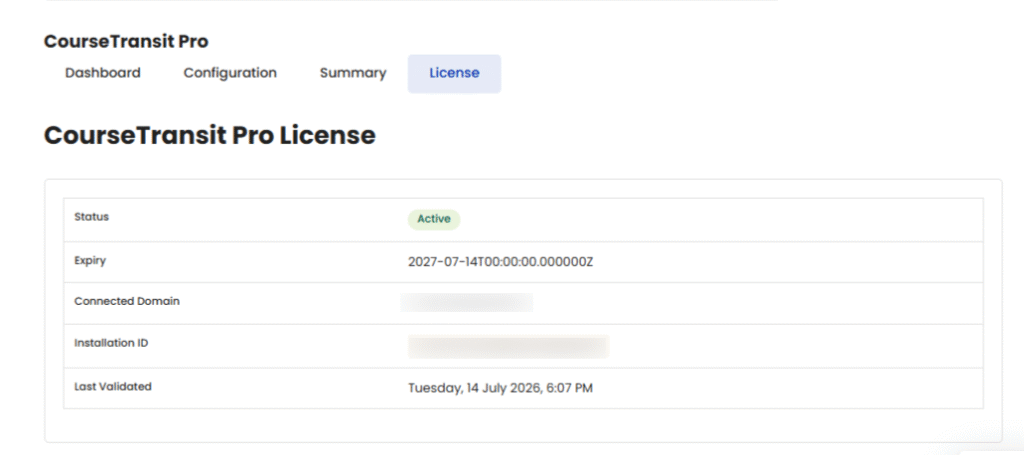
The page displays:
- License status
- Expiry information
- Connected domain
- Installation ID
- Last validation time
If the license status is Active, CourseTransit Pro has been activated successfully.
Pro Features Unlocked #
A valid CourseTransit Pro license unlocks premium functionality across the integration.
| Feature | Description |
|---|---|
| ⭐ Select & Sync Courses | Select the Moodle courses that should be synchronized with WordPress. |
| ⭐ Automatic Course Sync | Automatically synchronize course updates using the supported Moodle webhook integration. |
| ⭐ Single Sign-On (SSO) | Enable seamless authentication between WordPress and Moodle. |
| ⭐ Bundles | Create and manage course bundles through the CourseTransit WordPress dashboard. |
| ⭐ Bulk Purchase | Configure bulk purchasing so buyers can purchase multiple seats for a course in a single order. |
| ⭐ Request a Quote | Allow eligible buyers to request a quote instead of paying the standard price upfront. |
Some features, such as SSO, automatic synchronization, and bulk purchasing, require their respective settings to be enabled. Bulk Purchase and Request a Quote also require a valid Pro license to manage their settings.
Next Step #
Once your license is active, continue to Course Synchronization & Product Configuration to configure course synchronization and WooCommerce products.


