

CourseTransit Pro helps businesses, training providers, and organizations purchase course seats for multiple learners. Administrators can configure bulk purchasing, offer quantity-based discounts, and allow customers to request a quote instead of paying upfront.
The Bulk Purchase settings allow you to define purchasing rules and discount tiers for courses. Quote requests can then be reviewed and managed through the CourseTransit Orders section.
Before You Begin #
Before configuring these features, ensure that:
- The CourseTransit Moodle and WordPress plugins are installed and connected.
- WooCommerce is installed and activated.
- You have an active, verified CourseTransit Pro license.
- The courses you want to sell are synchronized with WordPress.
Accessing Bulk Purchase Settings #
- Log in to your WordPress administrator dashboard.
- Navigate to CourseTransit → Settings.
- Open the Bulk Purchase tab.
- Configure the required settings.
- Click Save Settings.
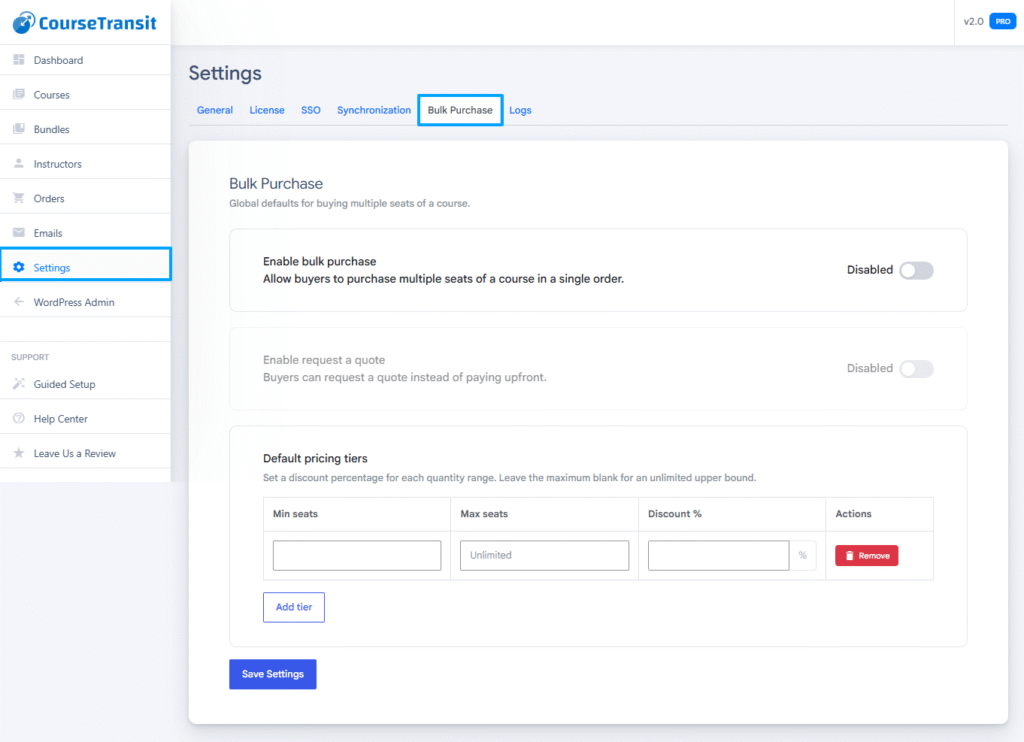
Enable Bulk Purchase #
Bulk Purchase allows customers to purchase multiple seats for a course in a single order.
To enable it:
- Open CourseTransit → Settings → Bulk Purchase.
- Locate Enable bulk purchase.
- Turn the toggle on.
- Configure the default pricing tiers.
- Click Save Settings.
When enabled, the configured bulk-purchasing options become available for supported course products.
Configure Default Pricing Tiers #
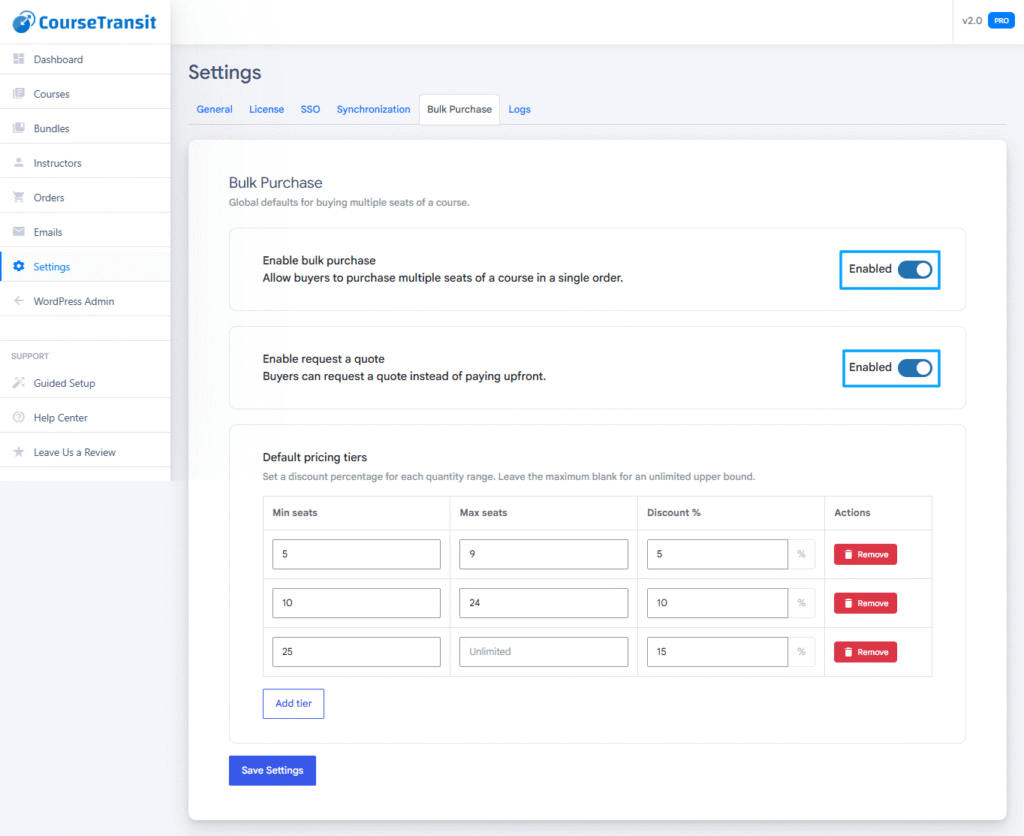
Pricing tiers allow you to offer percentage discounts based on the number of seats purchased.
Each tier contains three fields:
| Field | Description |
|---|---|
| Min seats | Minimum quantity required to qualify for the tier. |
| Max seats | Maximum quantity covered by the tier. Leave blank for an unlimited upper bound. |
| Discount % | Percentage discount applied to the qualifying quantity range. |
Add a Pricing Tier #
- Locate the Default pricing tiers section.
- Click Add tier.
- Enter the minimum number of seats.
- Enter the maximum number of seats, if applicable.
- Enter the discount percentage.
- Repeat for any additional quantity ranges.
- Click Save Settings.
Use Remove in a tier’s Actions column to remove a tier you no longer need.
Example Pricing Structure #
The following is an illustrative example, not a preset configuration.
| Minimum seats | Maximum seats | Discount |
|---|---|---|
| 5 | 9 | 5% |
| 10 | 24 | 10% |
| 25 | Unlimited | 15% |
This structure offers increasing discounts as customers purchase more seats.
Important: Configure quantity ranges carefully so that your pricing tiers are consistent and do not overlap unintentionally.
Enable Request a Quote #
Request a Quote allows customers to submit a pricing request rather than proceeding directly with a standard purchase.
This is useful for corporate training, large group enrollments, and customers who want to negotiate pricing before completing an order.
Steps #
- Navigate to CourseTransit → Settings → Bulk Purchase.
- Enable Enable bulk purchase first, if it is not already enabled.
- Locate Enable request a quote.
- Turn the quote option on.
- Review the bulk-purchase configuration.
- Click Save Settings.
The quote option may remain unavailable while Bulk Purchase is disabled.
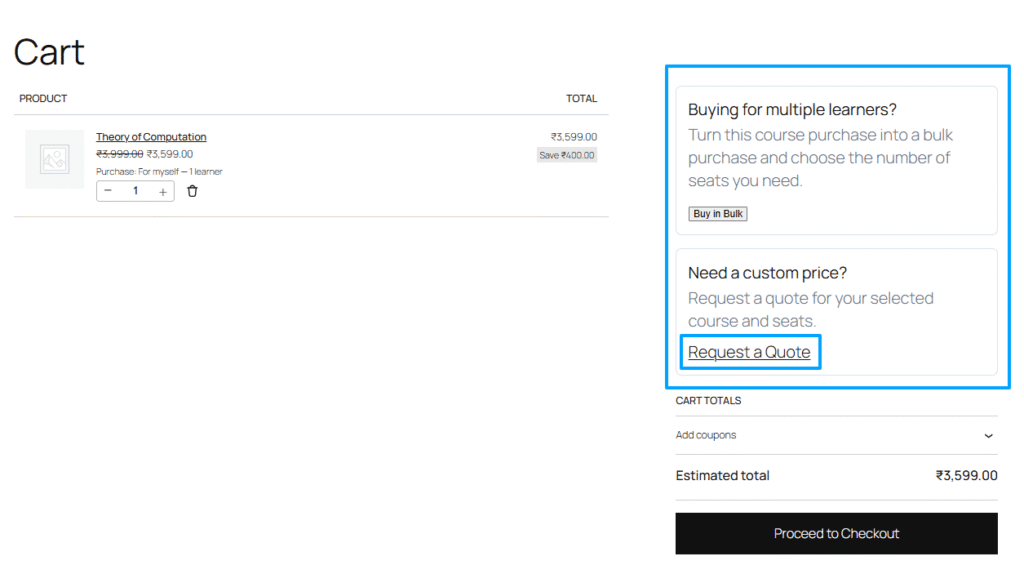
How Customers Request a Quote #
When quote purchasing is enabled, customers can request pricing for a supported course and quantity of seats.
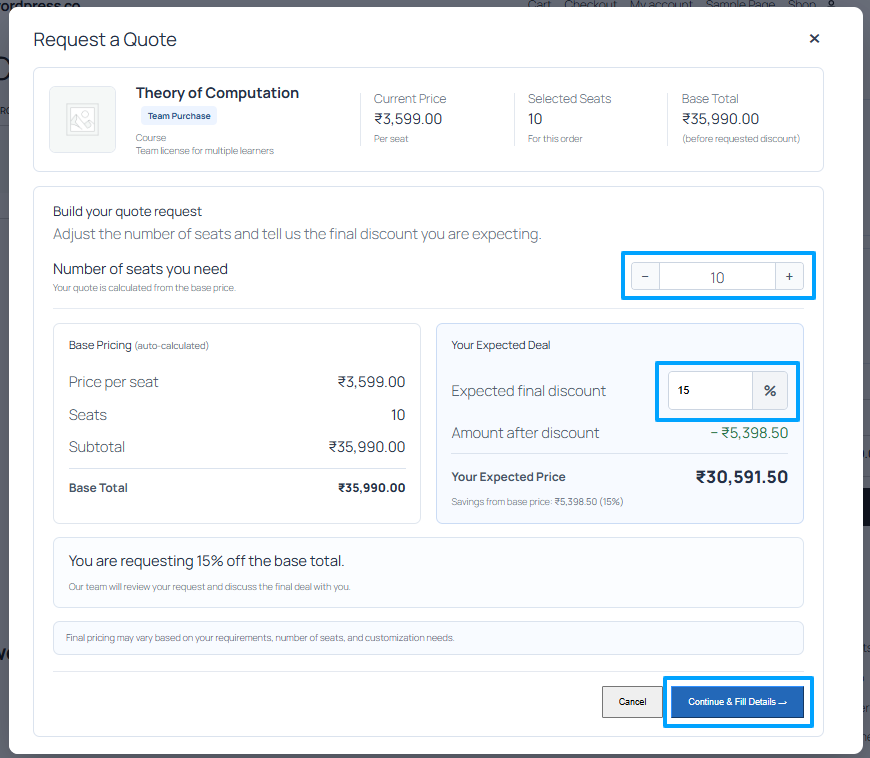
The quote workflow records information such as:
- Customer details
- Course or product
- Number of seats
- Base price and total
- Requested discount
- Requested price
- Customer message, when provided
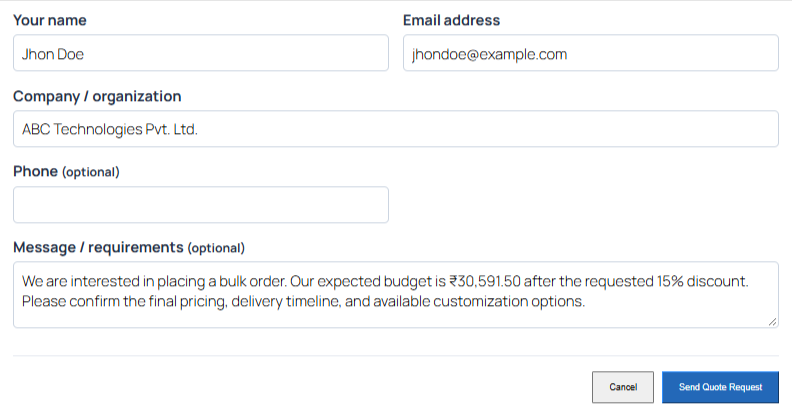
After submission, CourseTransit creates a quote request that administrators can review.
The customer can also receive an email confirming that the request was received.
Managing Quote Requests #
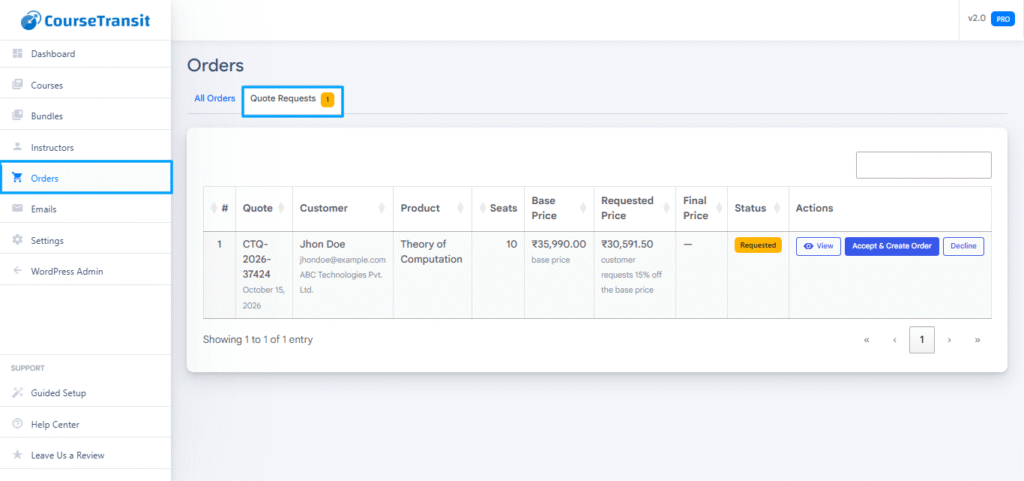
Administrators can review quote requests from the Orders section.
- Navigate to CourseTransit → Orders.
- Open Quote Requests.
- Locate the quote you want to review.
- Open its details to inspect the customer, product, quantity, pricing, and message.
- Choose the appropriate action.
The Quote Requests table provides information including:
| Column | Description |
|---|---|
| Quote | Quote reference number. |
| Customer | Customer who submitted the request. |
| Product | Course product associated with the request. |
| Seats | Number of requested seats. |
| Base Price | Original total before the requested discount. |
| Requested Price | Total requested by the customer. |
| Final Price | Final completed price, when available. |
| Status | Current quote status. |
| Actions | Available quote-management actions. |
Accept a Quote #
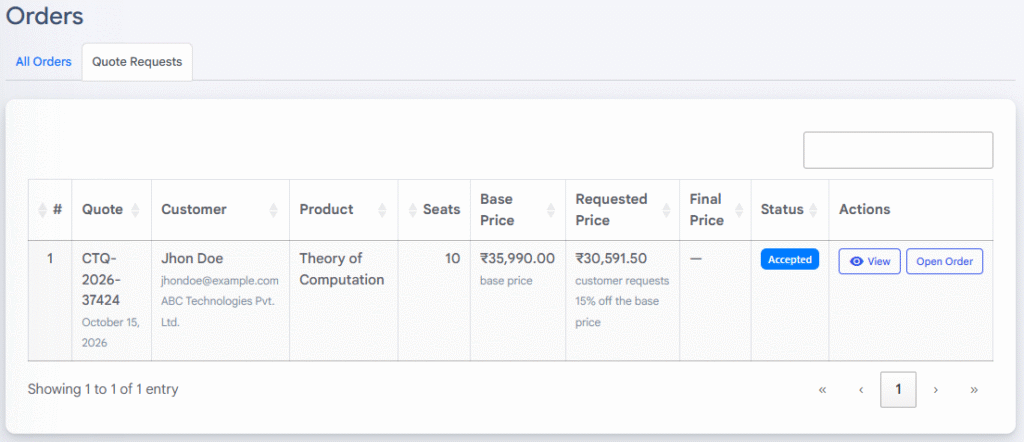
Review the customer’s requested price and details before accepting the request.
- Open the quote details.
- Review the requested quantity, discount, and total.
- Click Accept & Create Order when you are ready to proceed.
- Follow the resulting order workflow.
Accepting a quote creates an order based on the finalized quote terms.
Decline a Quote #
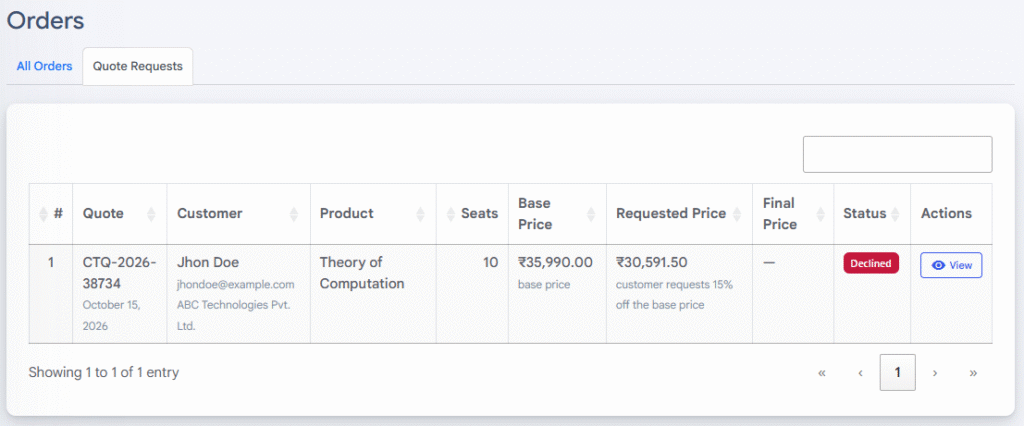
If you cannot approve the requested terms:
- Open the quote details.
- Review the customer’s request.
- Click Decline.
- Confirm the action if prompted.
The quote status is updated, and the customer can receive a quote-declined notification according to the configured email template.
Email Notifications #
CourseTransit provides dedicated email templates for the quote workflow.
Navigate to CourseTransit → Emails to configure:
- Bulk Purchase Confirmation — Confirms a completed bulk purchase.
- Quote Purchase Confirmation — Confirms a completed quote-based purchase.
- Quote Declined — Notifies the customer that a quote was declined.
Review the email subjects, content, and available dynamic tags before using these templates in production.
For instructions, see Email Templates.
Important Notes #
- Bulk Purchase and Request a Quote are CourseTransit Pro features.
- A valid Pro license is required to manage these settings.
- Request a Quote depends on Bulk Purchase being enabled.
- Review pricing tiers before making bulk discounts available to customers.
- A quote request is not the same as a completed purchase.
- Review the quote details before accepting or declining a request.
- Test the customer-facing purchasing and quote workflow before enabling it on a live store.
Next Step #
Continue to Email Templates to customize bulk-purchase and quote-related notifications, or return to Course Bundles to configure packages containing multiple Moodle courses.


