

CourseTransit requires installation on both platforms:
Moodle Plugin – Handles authentication and course access
WordPress Plugin – Manages API, licensing, and integration
Moodle Plugin Installation #
Prerequisites #
Before proceeding with the installation, ensure the following:
- You have administrator access to your Moodle site.
- Your Moodle version is compatible with the plugin.
- You have received the plugin package (.zip file).
Step 1: Download the Plugin #
Download the latest version of the CourseTransit Moodle Authentication Plugin from your official source or provider.
Step 2: Install the Plugin in Moodle #
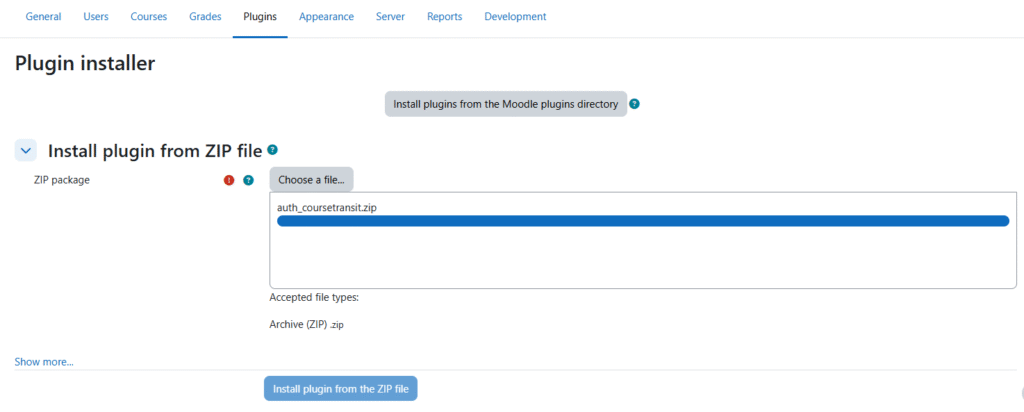
- Log in to your Moodle site as an Administrator.
- Navigate to: Site Administration → Plugins → Install plugins.
- Upload the plugin ZIP file (
auth_coursetransit.zip). - Click Install plugin from the ZIP file.
Alternatively, you can manually install the plugin:
- Extract the ZIP file.
- Place the folder inside: /auth/coursetransit directory.
Step 3: Complete Installation #
After uploading:
- Moodle will automatically detect the new plugin.
- Click Upgrade Moodle database now.
- Follow the on-screen instructions until installation completes successfully.
WordPress Plugin Installation #
Prerequisites #
Before proceeding with the installation, ensure the following:
- You have administrator access to your WordPress site
- Your WordPress installation is up to date
- You have received the CourseTransit plugin package (.zip file)
Step 1: Download the Plugin #
Download the latest version of the CourseTransit WordPress Plugin from your official source or provider.
Step 2: Install the Plugin in WordPress #
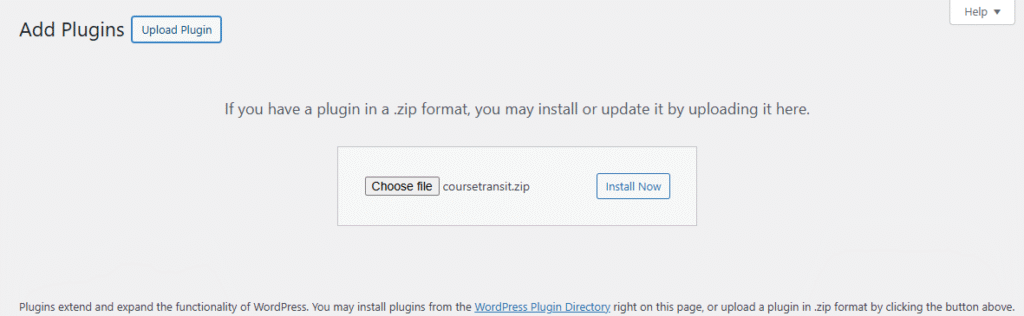
- Log in to your WordPress site as an Administrator
- Navigate to:
Plugins → Add New → Upload Plugin - Click Choose File and select the plugin ZIP file
- Click Install Now
Step 3: Activate the Plugin #
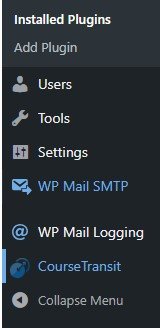
- After installation, click Activate Plugin
- Once activated, the CourseTransit menu will appear in the WordPress sidebar
What’s Next? #
After successfully installing both the Moodle and WordPress plugins, you can proceed with the initial platform configuration and integration setup.
Continue to the Guided Setup section to:
- Connect your Moodle and WordPress platforms
- Configure secure API communication
- Prepare the system for course synchronization and enrollments


