

The Instructors module allows administrators to create and manage instructor profiles within CourseTransit.
Instructor profiles can be associated with courses and displayed publicly on course pages, providing students with instructor information and expertise details.
Accessing the Instructors Module #
- Log in to your WordPress Admin Dashboard
- Navigate to: CourseTransit → Instructors
Instructors Overview #
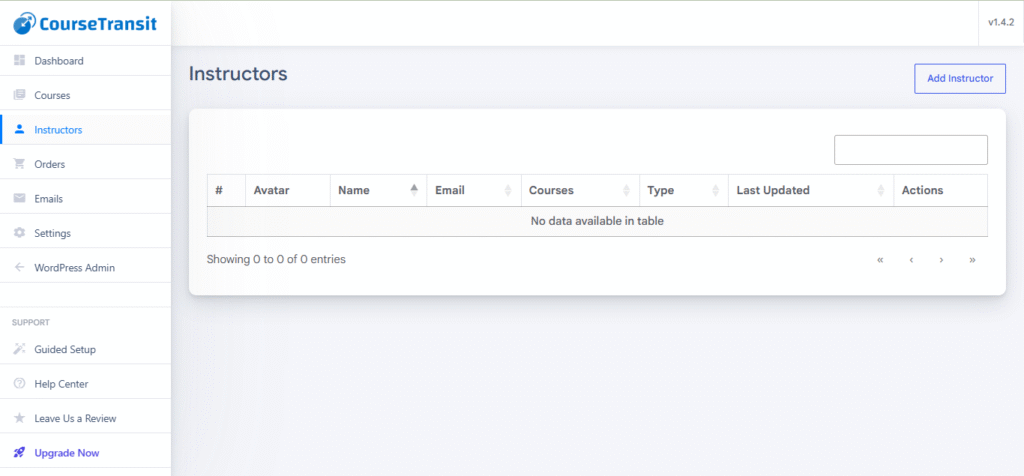
The instructors table provides a centralized view of all instructor profiles.
Available information includes:
- Instructor avatar
- Name
- Email address
- Assigned courses
- Profile visibility type
- Last updated date
Administrators can also search and manage instructors directly from this page.
Adding a New Instructor #
To create a new instructor profile:
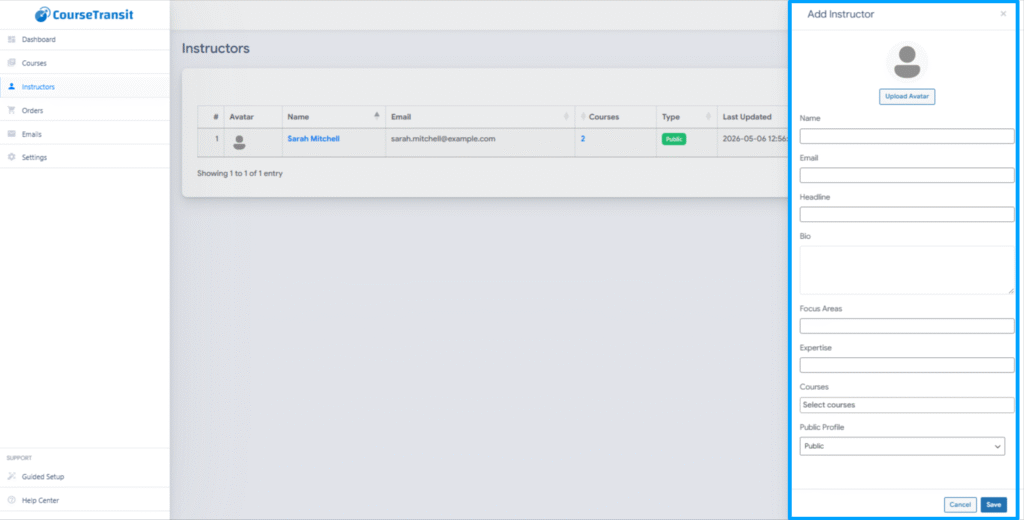
- Click the Add Instructor button
- The instructor form panel will open from the side
Instructor Information Fields
The following information can be configured for each instructor.
| Field | Description | Example / Notes |
|---|---|---|
| Avatar | Upload an instructor profile image using the Upload Avatar button. Supported image formats depend on your WordPress media settings. | Instructor profile image |
| Name | Enter the instructor’s display name. This name will appear on course pages, instructor profiles, and public instructor sections. | John Doe |
| Provide the instructor’s email address for identification and internal management purposes. | john@example.com | |
| Headline | Add a short professional title or designation for the instructor. | Senior Software Engineer, Data Science Mentor, Cloud Architect |
| Bio | Provide a detailed description about the instructor. This can include professional background, teaching experience, certifications, and achievements. | Instructor introduction and background |
| Focus Areas | Specify the instructor’s primary teaching domains or specialization areas. | Full Stack Development, Java, Cloud Computing, Moodle |
| Expertise | List the technologies, tools, or platforms the instructor specializes in. | PHP, Laravel, Node.js, React, AWS |
| Courses | Assign one or multiple courses to the instructor. Assigned courses will automatically appear under instructor profiles and course pages. | Multiple course selection supported |
| Public Profile | Choose whether the instructor profile should be publicly visible on frontend course pages. | Public → Visible on frontend Private → Hidden from frontend users |
Saving the Instructor
After entering all required details:
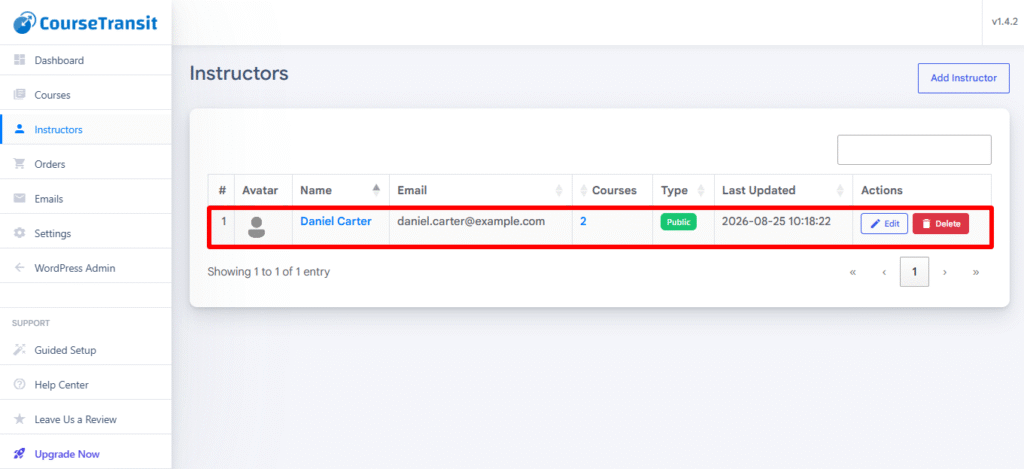
- Click the Save button
- The instructor will appear in the instructors listing table
Viewing Assigned Courses #
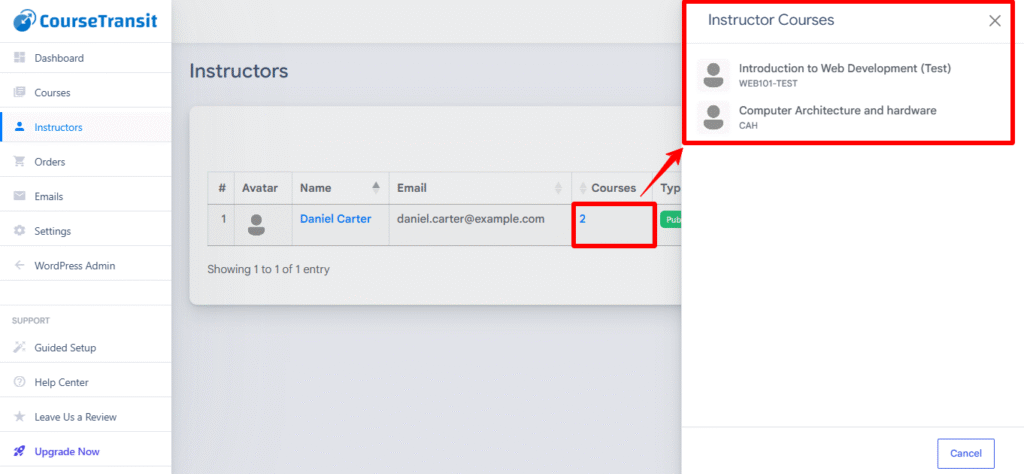
Administrators can view all courses assigned to an instructor directly from the instructors table.
- Click the course count under the Courses column
- A side panel will display all associated courses
Instructor Display on Course Pages #
When an instructor profile is marked as Public, instructor information will automatically appear on frontend course pages.
Displayed information may include:
- Instructor name
- Avatar
- Bio or headline
- Assigned courses

Public Instructor Profile Page #
Each public instructor can also have a dedicated frontend instructor profile page.
Students can view:
- Instructor details
- Biography
- Expertise
- Associated courses

Best Practices #
- Use professional instructor photos
- Keep biographies concise and informative
- Add accurate expertise and focus areas
- Assign instructors only to relevant courses
- Use public visibility only for approved instructor profiles
Important #
- Setting a profile to Private hides instructor information from fend users
- Courses assigned to instructors should already exist in the system.
- Incomplete instructor profiles may reduce end presentation quality.


