

CourseTransit Pro provides Single Sign-On (SSO) to help learners access Moodle from WordPress without having to sign in to Moodle separately.
When Moodle SSO is enabled, CourseTransit can automatically sign learners into Moodle when they open a course from WordPress.
Before You Begin #
Before enabling SSO, ensure that:
- The CourseTransit Moodle and WordPress plugins are installed.
- Moodle and WordPress are connected successfully.
- Guided Setup has been completed.
- You have an active, verified CourseTransit Pro license.
- Course access and enrollment are configured correctly.
Accessing SSO Settings #
- Log in to your WordPress administrator dashboard.
- Navigate to CourseTransit → Settings.
- Open the SSO tab.
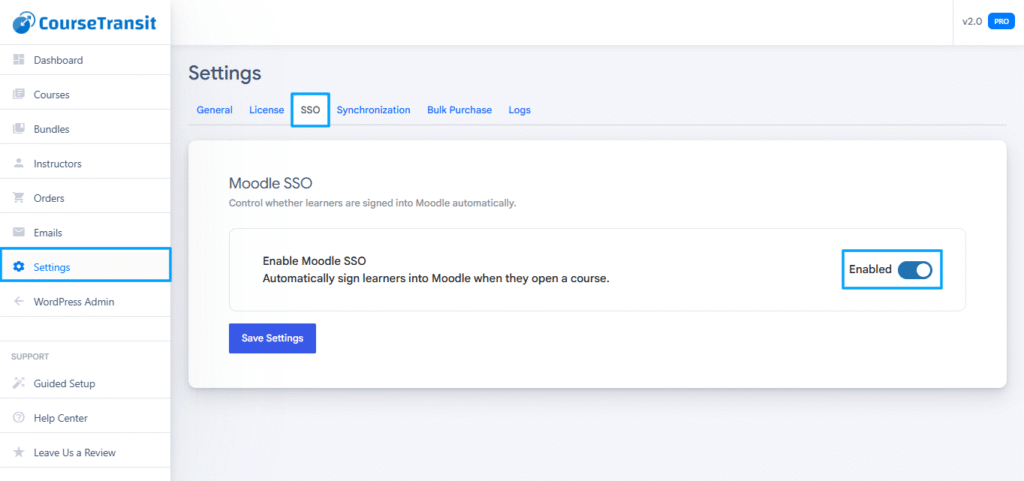
The Moodle SSO section contains a toggle to control automatic learner sign-in.
Enable Moodle SSO #
To enable Single Sign-On:
- Open CourseTransit → Settings → SSO.
- Locate Enable Moodle SSO.
- Turn the toggle on.
- Click Save Settings.
When enabled, CourseTransit attempts to sign learners into Moodle automatically when they open a course through the supported WordPress course-access flow.
Disable Moodle SSO #
If you do not want CourseTransit to sign learners into Moodle automatically:
- Navigate to CourseTransit → Settings → SSO.
- Turn off Enable Moodle SSO.
- Click Save Settings.
Learners may then need to authenticate with Moodle separately, depending on their existing Moodle session and login configuration.
How Moodle SSO Works #
The general learner workflow is:
- A learner accesses a course through WordPress.
- CourseTransit initiates the configured SSO flow.
- Moodle validates the authentication request.
- The learner is signed into Moodle if the request is valid and access is permitted.
- The learner can access the relevant Moodle course according to their enrollment and permissions.
SSO simplifies access between the two platforms, but it does not independently grant course enrollment or override Moodle permissions.
Verify Your SSO Configuration #
After enabling SSO, test the flow before making it available to all learners.
- Save the SSO setting.
- Open your WordPress site in a separate browser session.
- Sign in as a test learner.
- Open a course connected to Moodle.
- Verify that Moodle opens and the learner is signed in as expected.
- Confirm that the learner can access the course if properly enrolled.
If the test fails, verify the CourseTransit connection, Moodle configuration, license status, and course enrollment.
Important Notes #
- Moodle SSO is a CourseTransit Pro feature and requires a valid Pro license.
- SSO must be enabled and saved in WordPress Settings.
- Learners must still have appropriate Moodle permissions and course enrollment.
- Test the SSO workflow using a non-administrator account before deploying it in production.
- Do not share authentication tokens or sensitive configuration details when troubleshooting.
Next Step #
Continue to Synchronization Settings to configure course synchronization, or visit License Activation ⭐ Pro if you need to verify your CourseTransit Pro license.


